

A sitemap that returns a 500 error is easy to overlook and costly to ignore. Search engines request your sitemap to discover pages, and when that request fails, new content can take longer to be found and updated pages can be recrawled less often. In Next.js, a sitemap failure usually has a clear cause, and the fix is typically a small, well-targeted change.
This tutorial explains why a Next.js sitemap returns a 500 error, how to find the cause, how to fix the most common problems, and how to verify that the sitemap works in both development and production. The examples use the App Router, which is the current default in Next.js, and include notes for projects that still use the Pages Router.
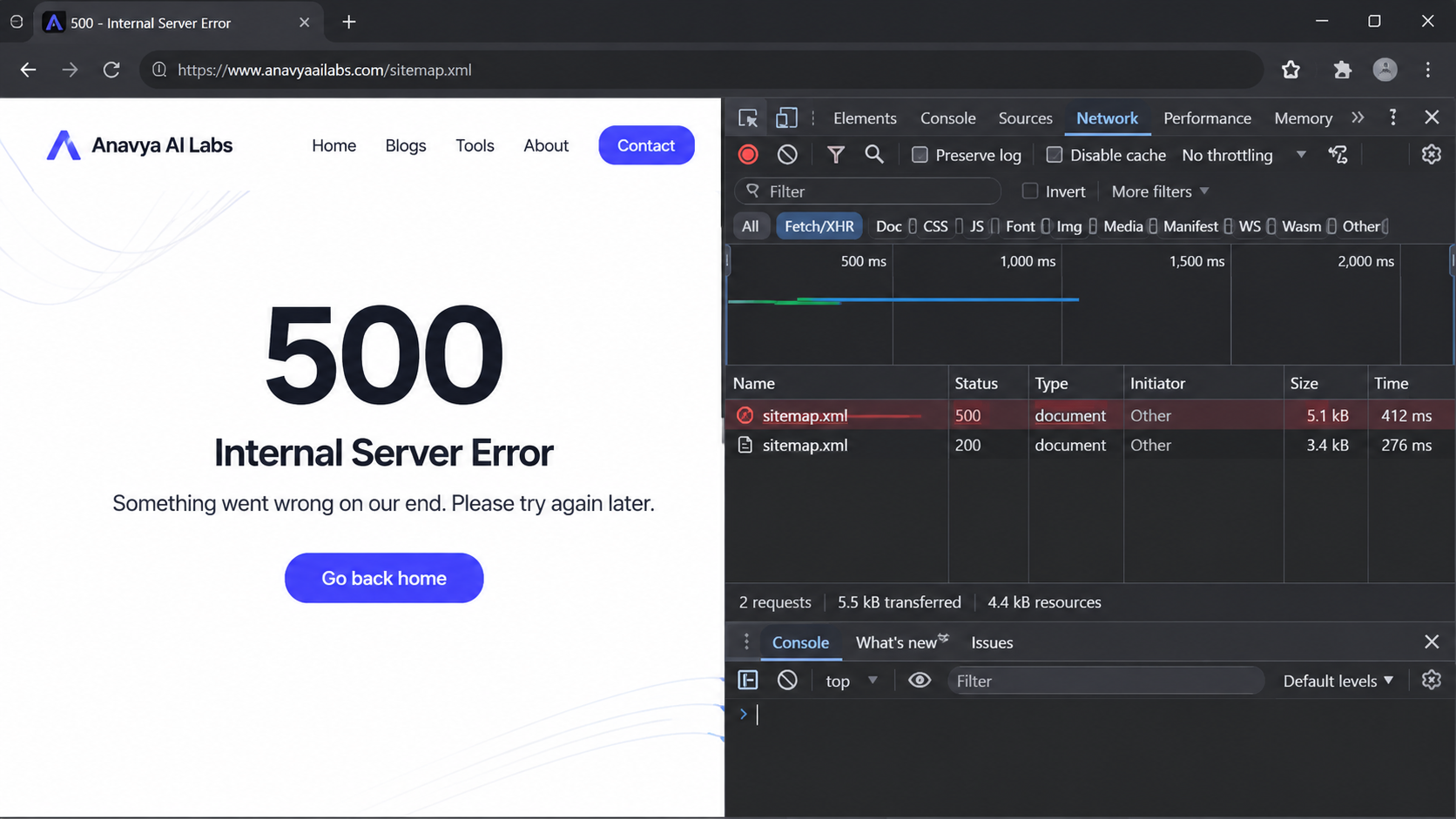
A 500 error means the server failed while generating the sitemap. The fix is to find the failing step and make it resilient.
What a 500 Error Means for a Sitemap
A 500 status code means the server encountered an unexpected condition while processing the request. For a sitemap, this means the code that generates the XML file threw an error or returned an invalid result. The browser or crawler receives no sitemap, only an error response.
This is different from a 404. A 404 means the file does not exist at that address. A 500 means the file exists in your code, but generating it failed. That distinction matters, because the fix is in your application logic, not in your routing or file placement.
Search engines treat repeated failures seriously. A sitemap that consistently returns 500 may be retried less often, and the URLs it should have listed may be discovered more slowly. Fixing the error promptly protects your crawl schedule.
Step 1: Find the Error
Before changing any code, read the error. Next.js writes server errors to the terminal during development and to your hosting platform's logs in production.
Start your development server and request the sitemap directly:
npm run dev
Then open http://localhost:3000/sitemap.xml in your browser, or request it from the command line:
curl -i http://localhost:3000/sitemap.xml
The -i flag includes the response headers, so you can confirm the status code. Watch the terminal where the development server is running. The stack trace will usually name the file and line where the error was thrown, along with the error message.
In production, check the logs in your hosting dashboard after the request fails. The same error message should appear there. If you use a platform with separate build and runtime logs, check both, because a sitemap that is generated at build time can fail during the build rather than at request time.
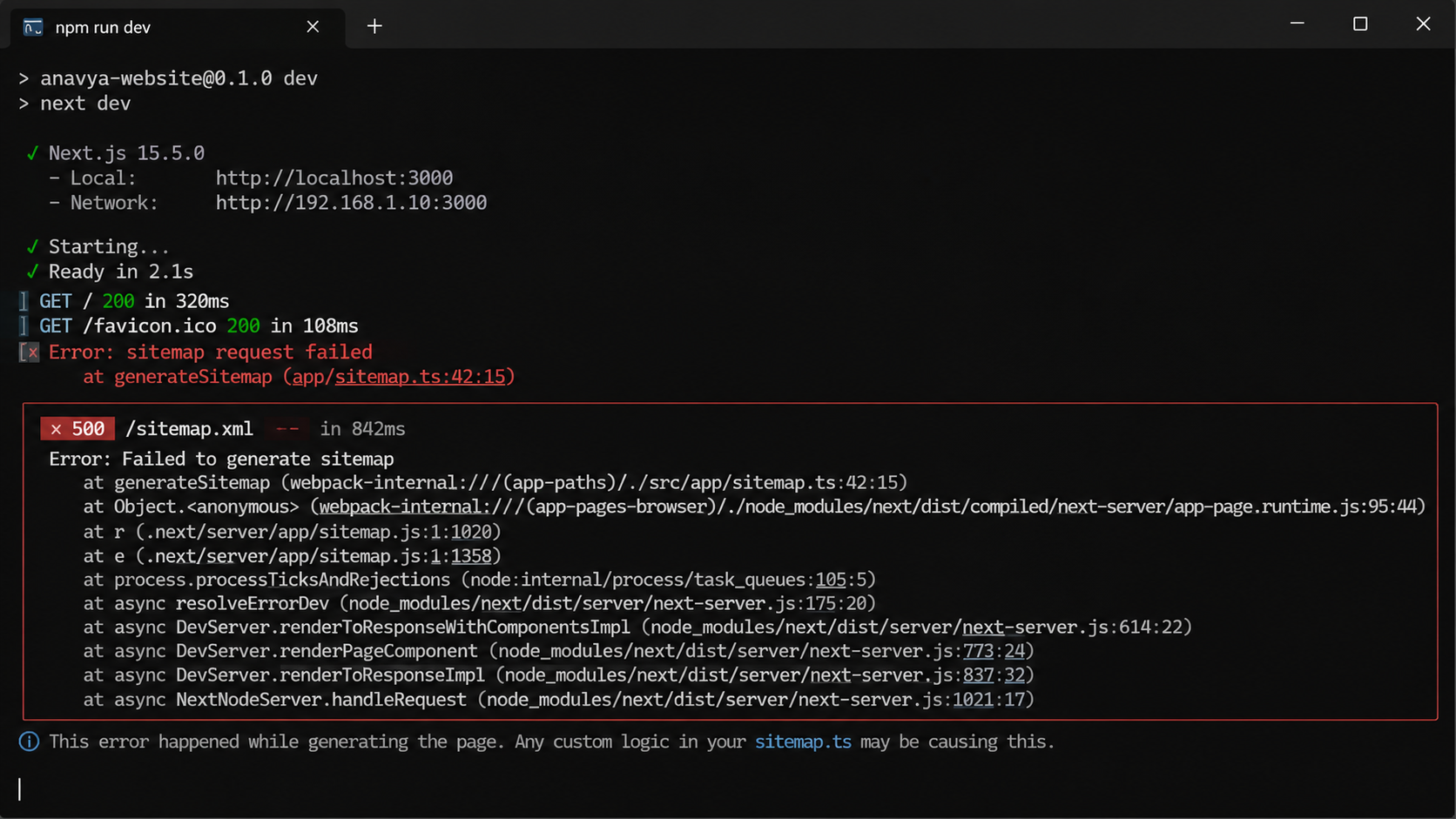
The stack trace identifies the file and line where the sitemap generation failed. Start there.
Step 2: Understand the Common Causes
Most sitemap 500 errors come from a small number of causes.
Unhandled errors when loading data. The sitemap often lists pages drawn from a database or a content management system. If that request fails because the database is unavailable, a credential is wrong, or a query throws, the error propagates and the sitemap fails.
Invalid dates. Each sitemap entry can include a last modified date. If that date comes from a field that is empty or malformed, the date object becomes invalid. Calling a date method on an invalid date can throw an error, which causes the request to fail.
Missing environment variables. Sitemaps usually need the site's base URL to build absolute links. If the variable that holds that URL is not set in production, the code may construct invalid URLs or throw when it tries to parse them.
Incorrect return types. The sitemap function must return data in the shape Next.js expects. A missing field, a misspelled property, or a value of the wrong type can cause the response to fail.
Build-time failures. If the sitemap is generated during the build, a database call or network request that works locally may fail in the build environment, for example because a secret is missing.
Problems in the Pages Router. Projects that use the older Pages Router often implement the sitemap as an API route or a server-side function that writes XML directly. Errors in that code, such as an unhandled exception or a missing response, produce the same 500 result.
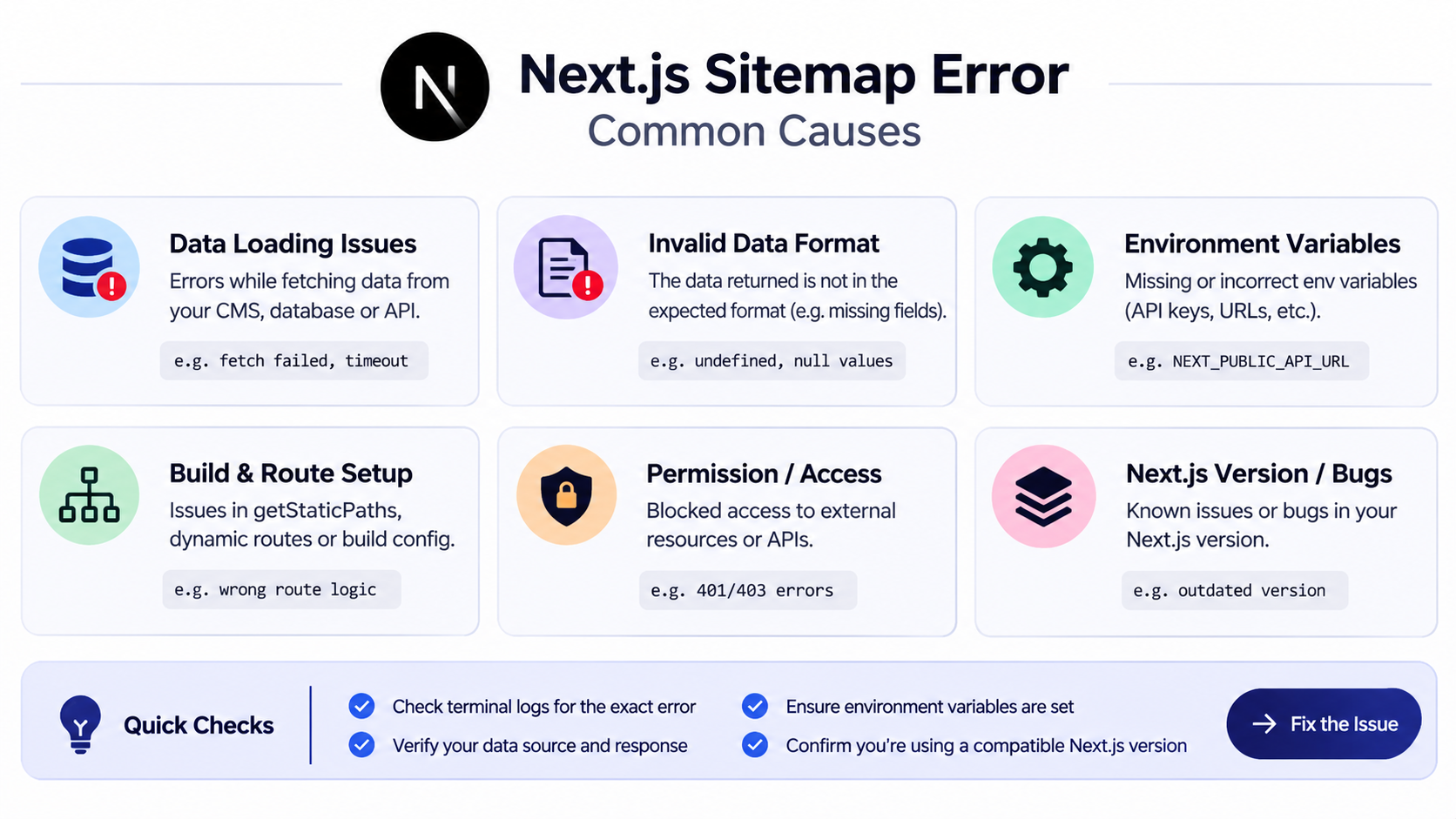
Most sitemap failures come from data loading, invalid dates, missing configuration, incorrect return values, or build-time differences.
Step 3: Build a Resilient Sitemap in the App Router
In the App Router, you generate a sitemap by creating a file named sitemap.ts inside the app directory. Next.js serves its output at /sitemap.xml. The file exports a default function that returns an array of entries.
The following example shows a resilient version. It includes static pages, loads blog posts inside a try block so a data failure does not crash the whole sitemap, and safely handles invalid dates.
// app/sitemap.ts
import type { MetadataRoute } from "next";
import { getPublishedPosts } from "@/lib/posts";

const SITE_URL = (process.env.NEXT_PUBLIC_SITE_URL ?? "https://anavyaailabs.com").replace(/\/$/, "");

function toValidDate(value: unknown): Date {
  const date = value ? new Date(value as string) : new Date();
  return Number.isNaN(date.getTime()) ? new Date() : date;
}

export default async function sitemap(): Promise<MetadataRoute.Sitemap> {
  const now = new Date();

  const staticRoutes: MetadataRoute.Sitemap = [
    { url: SITE_URL, lastModified: now, changeFrequency: "weekly", priority: 1 },
    { url: `${SITE_URL}/blog`, lastModified: now, changeFrequency: "daily", priority: 0.8 },
  ];

  let postRoutes: MetadataRoute.Sitemap = [];

  try {
    const posts = await getPublishedPosts();
    postRoutes = posts
      .filter((post) => typeof post.slug === "string" && post.slug.length > 0)
      .map((post) => ({
        url: `${SITE_URL}/blog/${post.slug}`,
        lastModified: toValidDate(post.updatedAt),
        changeFrequency: "monthly" as const,
        priority: 0.6,
      }));
  } catch (error) {
    console.error("Sitemap: could not load blog posts", error);
  }

  return [...staticRoutes, ...postRoutes];
}
Several choices in this code prevent the most common failures.
The base URL is read from an environment variable and falls back to a known value, so a missing variable does not produce a broken URL. The trailing slash is removed so URLs are not built with double slashes.
The toValidDate helper returns a valid date in every case. If the stored value is empty or cannot be parsed, it falls back to the current date rather than producing an invalid object. This prevents the failure that occurs when a date method is called on an invalid date.
The data call is wrapped in a try block. If the database is unavailable, the sitemap still returns the static pages and logs the error for investigation, rather than failing completely. Search engines receive a useful file, and your team receives a clear log message.
The filter removes entries without a valid slug, which prevents malformed URLs from entering the sitemap.
Finally, the as const on changeFrequency keeps its type narrow, so TypeScript can check that the value matches the allowed options.
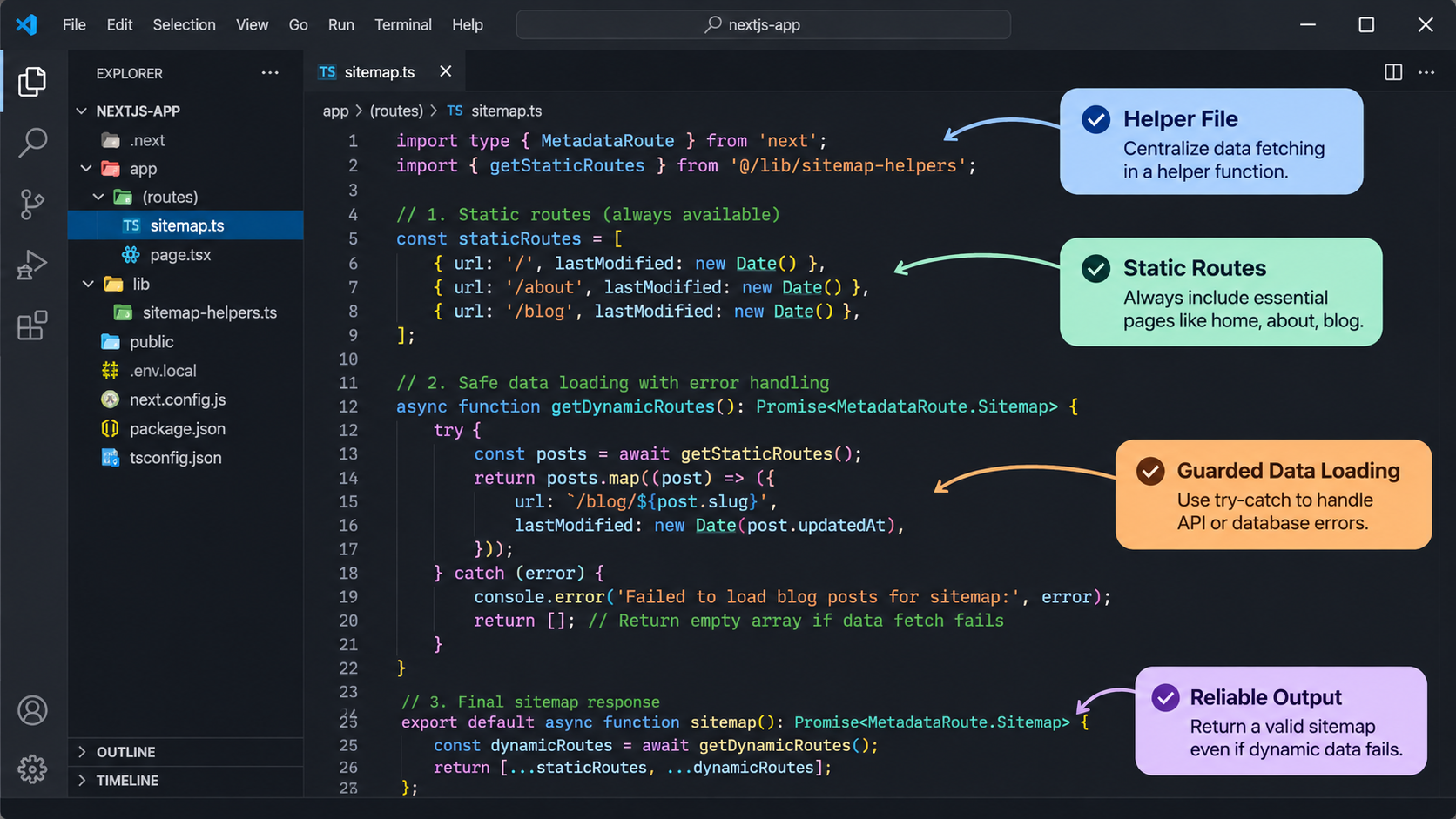
A resilient sitemap separates static routes, guarded data loading, and validated values, so one failure does not take down the whole file.
Step 4: Handle the Pages Router
If your project uses the Pages Router, the sitemap is usually an API route or a server-side function. The principle is the same: handle errors and always send a valid response.
// pages/sitemap.xml.ts
import type { GetServerSideProps } from "next";
import { getPublishedPosts } from "@/lib/posts";

const SITE_URL = (process.env.NEXT_PUBLIC_SITE_URL ?? "https://anavyaailabs.com").replace(/\/$/, "");

export const getServerSideProps: GetServerSideProps = async ({ res }) => {
  let postUrls: string[] = [];

  try {
    const posts = await getPublishedPosts();
    postUrls = posts
      .filter((post) => post.slug)
      .map((post) => `${SITE_URL}/blog/${post.slug}`);
  } catch (error) {
    console.error("Sitemap: could not load blog posts", error);
  }

  const urls = [SITE_URL, `${SITE_URL}/blog`, ...postUrls];
  const body = `<?xml version="1.0" encoding="UTF-8"?>
<urlset xmlns="http://www.sitemaps.org/schemas/sitemap/0.9">
${urls.map((url) => `  <url><loc>${url}</loc></url>`).join("\n")}
</urlset>`;

  res.setHeader("Content-Type", "application/xml");
  res.write(body);
  res.end();

  return { props: {} };
};

export default function Sitemap() {
  return null;
}
This version writes the XML directly, sets the correct content type, and falls back to static URLs if the data call fails. Note that the res.write and res.end calls are required, because the response must be finished before the function returns.
If your sitemap contains URLs with special characters, escape them before inserting them into the XML, since an unescaped ampersand or angle bracket produces invalid XML. For most blog slugs this is not an issue, but it matters for query strings and user-generated values.
Step 5: Check Build-Time Behavior
A sitemap that works in development can fail during next build, because the build environment may lack the variables or network access that your local machine has. Run a production build locally to catch these problems before deployment:
npm run build
npm run start
Then request the sitemap from the production server:
curl -i http://localhost:3000/sitemap.xml
If the build fails with an error that mentions the sitemap, the fix is usually one of two things. Either the data call needs a fallback, as in the example above, or the required environment variable is missing from the build environment. Add the variable to your hosting platform's settings for the build stage, not only the runtime stage.
If the sitemap depends on data that changes frequently, consider revalidation, which regenerates the cached output at a set interval rather than on every request. This reduces load on your data source and prevents a temporary database issue from affecting every crawler request, because the last good output can be served while the refresh is attempted.
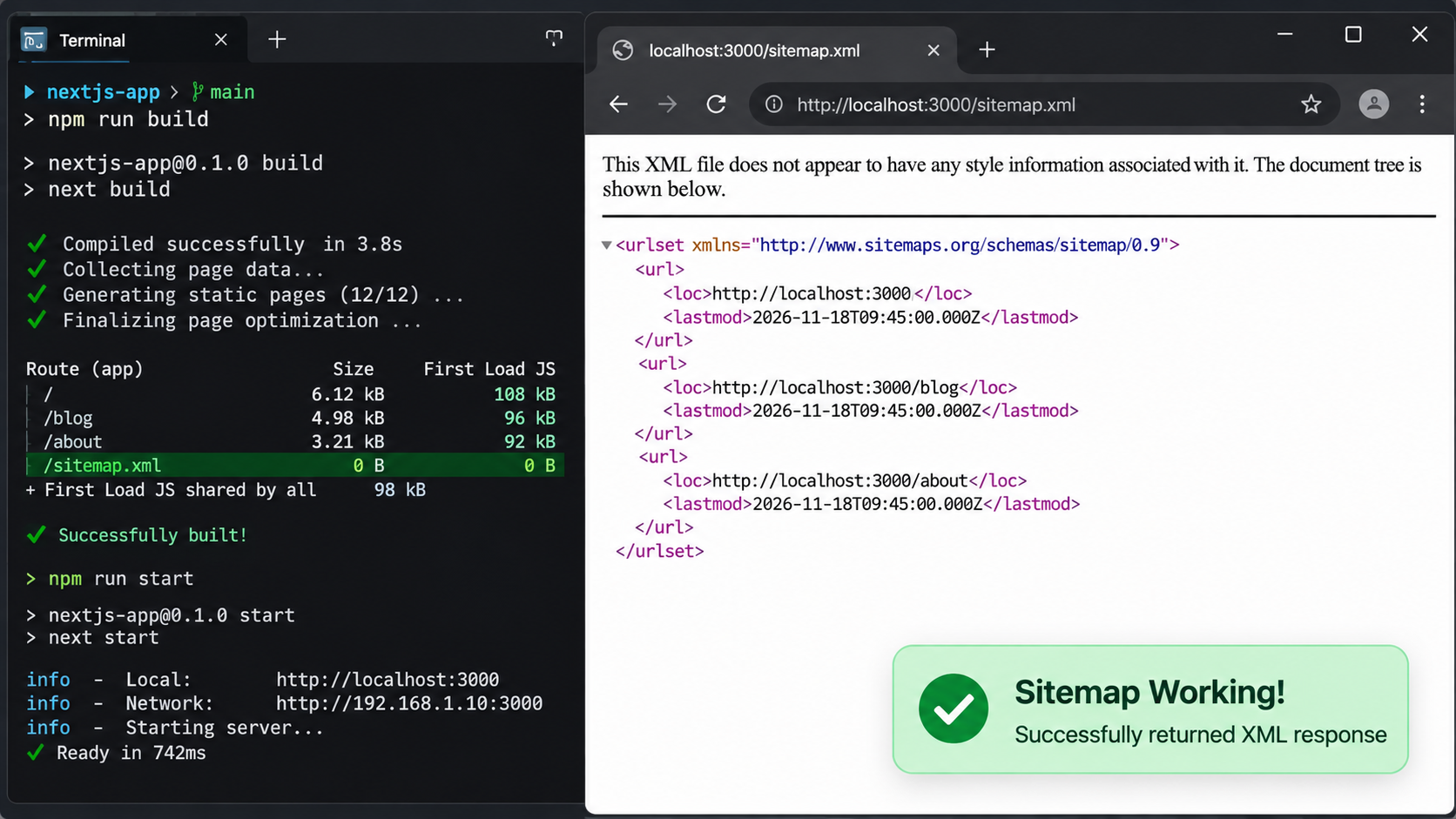
Test the production build, not only the development server, because build-time differences are a common source of failure.
Step 6: Verify the Fix
Verification confirms that the sitemap works and that it contains what you expect. Check four things.
The status code. Request the sitemap and confirm it returns 200, not 500 or 404:
curl -s -o /dev/null -w "%{http_code} %{content_type}\n" https://anavyaailabs.com/sitemap.xml
The output should show a 200 status and an XML content type.
The structure. Open the sitemap in a browser or view its source. Confirm that each entry has a valid URL and, where you provide one, a valid last modified date in the expected format.
The contents. Compare the listed URLs with the pages you intend to be indexed. Missing pages suggest a data problem. Pages that should not be included suggest a filter problem.
The submission. After the fix is deployed, resubmit the sitemap in the search engine webmaster tools you use. Check the status of the submission and any errors reported, and confirm that the error count stops growing over the following days.
Keep in mind that some crawlers will retry a failed sitemap on their own schedule, so the error may remain visible in reports for a while after the fix. A clean response from your server is the immediate goal, and the reports will update as crawlers retry.
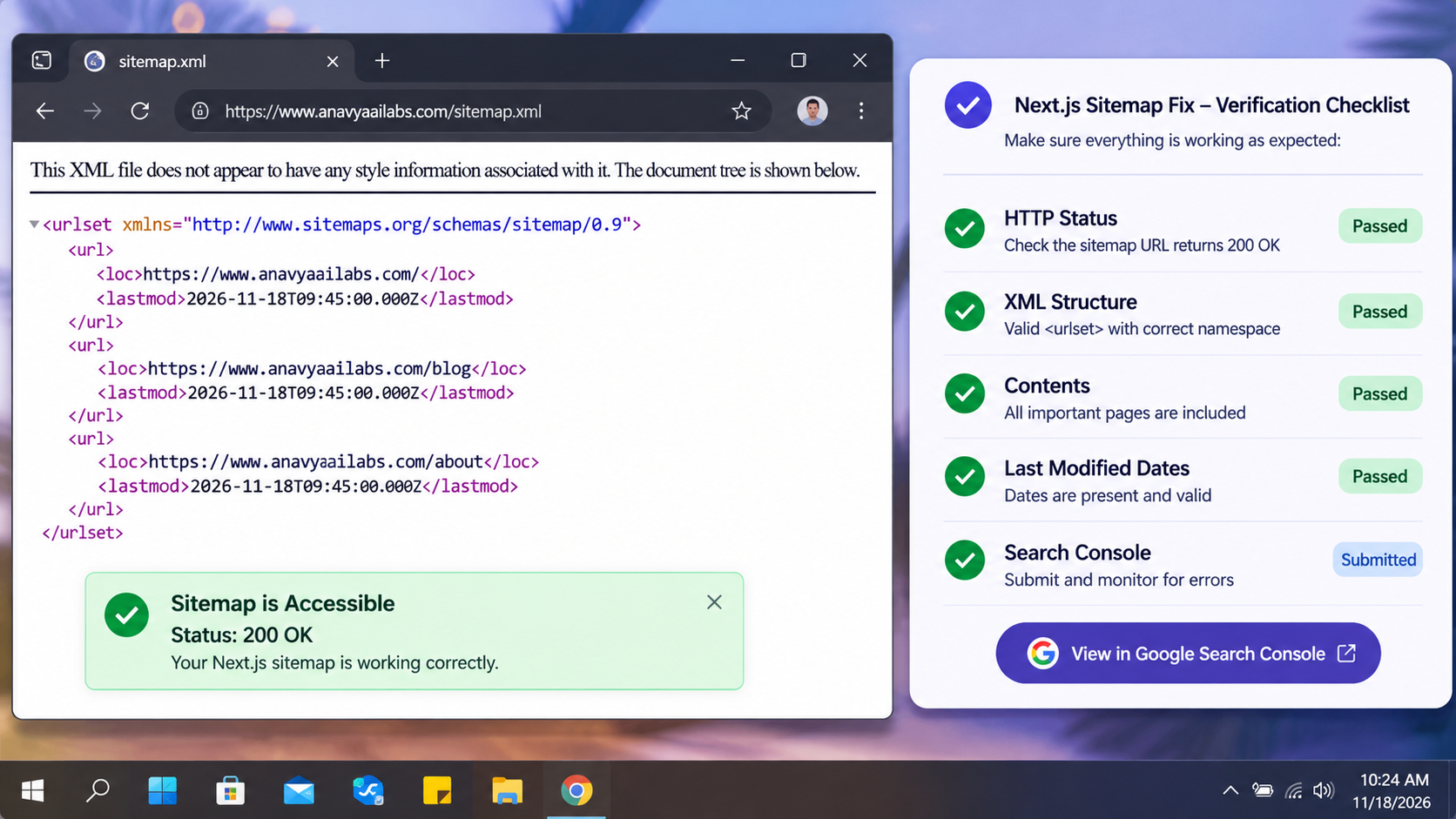
Verify the status code, structure, contents, and submission status before considering the fix complete.
Common Mistakes
Ignoring errors silently. An empty catch block hides the problem and makes the sitemap look healthy when it is not. Always log the error, and decide whether the fallback is acceptable.
Assuming environment variables exist in production. Check that every variable the sitemap uses is set in each environment, including the build stage.
Calling date methods on unvalidated values. Validate dates before calling methods that depend on them, or use a helper that falls back safely.
Returning too many URLs in one file. Sitemaps have size limits, and very large sites use a sitemap index that links to several sitemaps. If your site is large, check the current limits in the search engine documentation and split the sitemap as needed.
Forgetting the content type. A sitemap served with the wrong content type may be misread. In the Pages Router example, set the header explicitly.
Fixing the code but not redeploying. The change has no effect until the new version is live. Confirm the deployed version responds correctly.
Frequently Asked Questions
Why does my sitemap work locally but fail in production? Usually because a variable, a secret, or a network address is available locally but missing or different in production. Check the production logs and the environment settings for the build and runtime stages.
Should I use a package to generate the sitemap? Packages can help, especially for large or complex sites. A hand-written sitemap is perfectly reasonable for a small site, and it has fewer dependencies to maintain. Choose the approach that fits your project and your team's experience.
Does a 500 error on my sitemap affect rankings? A failing sitemap does not directly change rankings, but it can slow the discovery and recrawling of your pages, which can delay the appearance of new or updated content. Fix it promptly.
Can I make the sitemap faster? Yes. Caching or revalidation reduces the work done on each request. Avoid expensive data queries on every request when the output changes only occasionally.
What if the error only happens sometimes? Intermittent failures often point to a database connection limit, a timeout, or a network issue. Add logging around the data call, and review the error pattern over time.
Conclusion
A 500 error on a Next.js sitemap means the code that generates it failed, and the fix is in that code. Read the error, identify the failing step, and make it resilient. Validate the data, guard the external calls, provide safe fallbacks, and test the production build before you deploy.
Once the fix is live, verify the status code, the structure, the contents, and the submission status. A sitemap that reliably returns a valid response is one of the simplest ways to help search engines find your pages.
Key Takeaways
- A 500 error on a sitemap means generation failed in your code, which is different from a 404 that means the file is missing.
- Read the stack trace in development and the production logs to identify the failing step.
- Common causes include unhandled data errors, invalid dates, missing environment variables, incorrect return values, and build-time differences.
- Build the sitemap defensively: validate dates, guard data calls, log errors, and fall back to static routes where appropriate.
- Test the production build, then verify the status code, structure, contents, and submission status after deployment.


